 Tomcat 10.1.9 on Windows Powered by GlobalSolutions
The Apache Tomcat® software is an open source implementation of the Java Servlet, JavaServer Pages, Java Expression Language and Java WebSocket technologies.
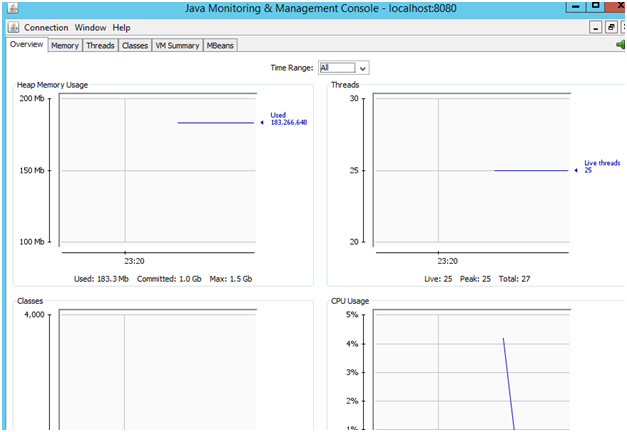
We have packaged a production-ready, security-hardened Tomcat server for development and production environments. Get our AMI from AWS Marketplace and you are ready in seconds to host your application. To make monitoring easier, we have enabled JMX monitoring so you can monitor the server as your application goes into production. Start the JConsole or Tomcat Manager from the desktop to see all the detailed metrics on the Tomcat server.
Why Subscribe to Our Offering in AWS Marketplace
- We update the software constantly to the latest version to address security issues.
- Customers can kick-start their core work right away with our pre-packaged AMIs.
- Production ready application stacks.
- Packaged with a Patch Management solution which can be enabled to protect your servers as you go to production — learn more at https://patchawscloud.com/saasconsole.
Accessing Your AMI from AWS Marketplace
To get started with your Tomcat stack:
- Subscribe: Purchase the Tomcat AMI from the AWS Marketplace.
- Connect via RDP:
- In the AWS Console, select your launched instance and click Connect.
- Choose RDP Client, upload your .pem key file, and decrypt the password using your private key.
- Download the .rdp file and connect using the username Administrator and the decrypted password.
Installation Paths and Versions
The Tomcat stack is installed in standard Windows directories for easy access:
| Category | Packages | Version | Location | Port |
|---|---|---|---|---|
| Tomcat | Tomcat | 10.1.9 | C:\Program Files\Apache Software Foundation\Tomcat 10.1 | 80 |
| Monitoring | JMX | 10.1.9 | C:\Program Files\Apache Software Foundation\Tomcat 10.1 | 8080 |
| Server Status | Host Manager | 10.1.9 | http://localhost | 80 |
Tomcat Host Manager
RDP to the machine and open the Host Manager from the desktop icon, or navigate to http://localhost/status.jsp in your browser.
| Username | Password |
|---|---|
| Administrator | Your Instance ID |
Note: If you are unable to log in, restart the Tomcat Server by going to Administrative Tools → Services.
Tomcat HTTP port: 80 JMX Monitoring port: 8080
Finding Your Instance ID
To locate your AWS Instance ID:
- Log into the AWS Console, select your EC2 instance, and view the details in the lower panel.
- Alternatively, after RDP login, check the desktop wallpaper or system info for the Instance ID.
Getting Started
Apache Tomcat is deployed as a Windows service. To deploy your application, copy your .war file to the following directory:
C:\Program Files\Apache Software Foundation\Tomcat 10.1.9\webapps
Once you deploy the war file, restart the Tomcat server (recommended but not required). After the restart, your application will be running on port 80 and accessible at:
http://localhost/app1— whereapp1is the name of your war filehttp://elasticIP/app1— using your public Elastic IPhttp://domainname/app1— using your domain name
Monitoring the Tomcat Server
Local Monitoring with JConsole
Open the JConsole shortcut on your desktop. When prompted, select the Remote Process option and enter localhost:8080 as the hostname and port. Click Connect and leave the username and password fields blank.
Remote Monitoring with JConsole
To monitor the Tomcat server from a remote machine, follow these steps:
- Go to the Tomcat
bindirectory and run Tomcat10w.exe to open the configuration console. - Go to the Java tab and locate the following property:
-Djava.rmi.server.hostname=localhost
Changelocalhostto your Elastic IP or public IP of the Tomcat server. For example:-Djava.rmi.server.hostname=52.24.45.67
- Click OK and restart the Tomcat server.
- On your remote machine, locate the Java
bindirectory and run JConsole. - Choose the Remote option, enter
tomcat-server-IP:8080, and leave the username and password fields blank. - Click Connect. If prompted with an SSL warning (since the connection is not over HTTPS), click OK to proceed — you will now be able to monitor your Tomcat server remotely.
AWS Cost Optimizer — CloudInsider
Our other popular offering is the AWS Cost Optimizer aka CloudInsider, available in AWS Marketplace. This service has helped our customers save significantly on AWS and other cloud spending. It is easy to subscribe and you can see the savings in minutes.
▶ Watch Demo Video Subscribe on AWS Marketplace
Support
For any questions or assistance with our AWS Marketplace offering, reach out to us at support@theglobalsolutions.net.